Pencilate: Text to Handwriting on Windows Pc
Developed By: Corvas
License: Free
Rating: 5,0/5 - 1 votes
Last Updated: August 04, 2026
App Details
| Version |
2.0.1 |
| Size |
21 MB |
| Release Date |
December 09, 25 |
| Category |
Productivity Apps |
|
App Permissions:
Allows applications to open network sockets. [see more (3)]
|
|
What's New:
🤖 AI Paste Added – Paste content from AI tools/LLMs and automatically render math formulas in a real handwritten style📊 Table Support – Easily add tables... [see more]
|
|
Description from Developer:
Turn typed text into real handwriting with Pencilate – the best text to handwriting app! Pencilate helps you easily convert your typed text into realistic handwritten notes. With p... [read more]
|
About this app
On this page you can download Pencilate: Text to Handwriting and install on Windows PC. Pencilate: Text to Handwriting is free Productivity app, developed by Corvas. Latest version of Pencilate: Text to Handwriting is 2.0.1, was released on 2025-12-09 (updated on 2026-08-04). Estimated number of the downloads is more than 1,000. Overall rating of Pencilate: Text to Handwriting is 5,0. Generally most of the top apps on Android Store have rating of 4+. This app had been rated by 1 users, 1 users had rated it 5*, 0 users had rated it 1*.
How to install Pencilate: Text to Handwriting on Windows?
Instruction on how to install Pencilate: Text to Handwriting on Windows 10 Windows 11 PC & Laptop
In this post, I am going to show you how to install Pencilate: Text to Handwriting on Windows PC by using Android App Player such as BlueStacks, LDPlayer, Nox, KOPlayer, ...
Before you start, you will need to download the APK/XAPK installer file, you can find download button on top of this page. Save it to easy-to-find location.
[Note] You can also download older versions of this app on bottom of this page.
Below you will find a detailed step-by-step guide, but I want to give you a fast overview of how it works. All you need is an emulator that will emulate an Android device on your Windows PC and then you can install applications and use it - you see you're playing it on Android, but this runs not on a smartphone or tablet, it runs on a PC.
If this doesn't work on your PC, or you cannot install, comment here and we will help you!
Step By Step Guide To Install Pencilate: Text to Handwriting using BlueStacks
- Download and Install BlueStacks at: https://www.bluestacks.com. The installation procedure is quite simple. After successful installation, open the Bluestacks emulator. It may take some time to load the Bluestacks app initially. Once it is opened, you should be able to see the Home screen of Bluestacks.
- Open the APK/XAPK file: Double-click the APK/XAPK file to launch BlueStacks and install the application. If your APK/XAPK file doesn't automatically open BlueStacks, right-click on it and select Open with... Browse to the BlueStacks. You can also drag-and-drop the APK/XAPK file onto the BlueStacks home screen
- Once installed, click "Pencilate: Text to Handwriting" icon on the home screen to start using, it'll work like a charm :D
[Note 1] For better performance and compatibility, choose BlueStacks 5 Nougat 64-bit read more
[Note 2] about Bluetooth: At the moment, support for Bluetooth is not available on BlueStacks. Hence, apps that require control of Bluetooth may not work on BlueStacks.
How to install Pencilate: Text to Handwriting on Windows PC using NoxPlayer
- Download & Install NoxPlayer at: https://www.bignox.com. The installation is easy to carry out.
- Drag the APK/XAPK file to the NoxPlayer interface and drop it to install
- The installation process will take place quickly. After successful installation, you can find "Pencilate: Text to Handwriting" on the home screen of NoxPlayer, just click to open it.
Discussion
(*) is required
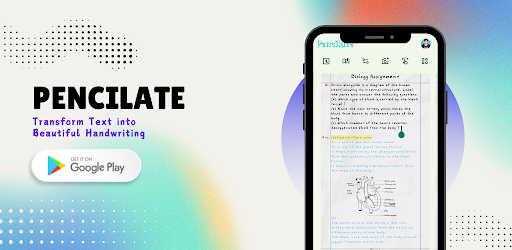
Turn typed text into real handwriting with Pencilate – the best text to handwriting app! Pencilate helps you easily convert your typed text into realistic handwritten notes. With powerful features, simple controls, and professional results, Pencilate is perfect for students, teachers, professionals, and creatives. Whether you want handwritten assignments, personal letters, or creative projects, Pencilate brings your text to life!
✦ Key Features:
➣ Unmatched Customization:
✔ Select from a diverse range of paper styles, including textures, gradients, and realistic notebook designs, or upload your own custom backgrounds.
✔ Adjust margins, ruled lines, and add headers or footers to give your documents a unique, polished touch.
➣ Versatile Text Styling:
✔ Access over 50 handwriting fonts, including elegant script styles and sign language fonts.
✔ Customize font size, colors, and styles (bold, italic, underline) with ease, ensuring every detail matches your vision.
➣ Effortless Workflow:
✔ Automatically manage lengthy text with pagination, adding pages as needed.
✔ Enjoy real-time preview functionality, instantly reflecting edits for a seamless editing experience.
➣ Creative Enhancements:
✔ Insert images or diagrams from your gallery directly into your text, making your documents visually rich and engaging.
✔ Perfect for professional presentations, creative assignments, or personalized messages.
➣ Professional Output:
✔ Export your work as high-quality images or PDFs, optimized for sharing and printing.
✔ Deliver polished, professional results every time.
➣ User-Friendly Experience:
✔ Switch between Dark and Light modes for optimal comfort while working.
✔ Supports multiple languages: English, Hindi, and Bengali.
✦ Why Choose Pencilate?
✔ Text to handwriting conversion: Effortlessly transform typed text into realistic handwritten notes.
✔ Text to handwritten assignments: Simplify creating neat and professional handwritten outputs for academic or creative needs.
✔ Customizable layouts: Adjust paper backgrounds, margins, fonts, and styles to suit your preferences.
✔ Real-time previews: Streamline your workflow with instant updates to your edits.
✔ Professional results: Export high-quality handwritten documents as PDFs or images.
✦ Perfect For:
✤ Students: Create professional-looking handwritten assignments, notes, and study materials.
✤ Teachers: Design engaging, personalized learning resources and activity sheets.
✤ Creatives: Craft custom handwritten greeting cards, invitations, or journals.
✤ Professionals: Add a personal handwritten touch to letters, reports, or presentations.
✦ Additional Highlights:
✔ Text to handwriting converter app: Easily transform typed text into handwritten formats.
✔ Handwritten assignments made easy: Produce detailed handwritten documents effortlessly.
✔ Insert diagrams seamlessly: Add gallery-picked images for a professional touch.
✔ Export options: Share handwritten notes as high-quality PDFs or images.
✔ Handwriting fonts library: Access over 50 fonts to make your documents unique.
✔ Custom margins and page layouts: Fine-tune every detail for realistic handwritten pages.
✦ How to Use Pencilate:
- Type or paste your text into the app.
- Choose handwriting font, paper style, and layout.
- Style your text with bold, italic, underline.
- Add diagrams, adjust margins, and set headers or footers.
- Preview your work instantly.
- Export your handwritten notes as image or PDF.
✦ Download Pencilate now!
Pencilate is the ultimate handwriting generator that makes it super easy to turn typed text into beautiful handwritten documents. Create handwritten notes, assignments, letters, or creative designs in just a few steps. Download now and experience the best text to handwriting converter app!
🤖 AI Paste Added – Paste content from AI tools/LLMs and automatically render math formulas in a real handwritten style
📊 Table Support – Easily add tables directly to your pages
📄 Better Page Size Handling – Improved support for multiple page sizes and dynamic layouts
🎨 UI Improvements – Cleaner, smoother, and more polished experience
Allows applications to open network sockets.
Allows applications to access information about networks.
Allows using PowerManager WakeLocks to keep processor from sleeping or screen from dimming.


