Bottom Quick Settings on Windows Pc
Developed By: Tom Bayley
License: Free
Rating: 4,2/5 - 12.259 votes
Last Updated: August 05, 2026
App Details
| Version |
6.3.0 |
| Size |
9.3 MB |
| Release Date |
September 18, 25 |
| Category |
Personalization Apps |
|
App Permissions:
Allows access to the vibrator. [see more (20)]
|
|
What's New:
Version 6.3.3- Bug fixes and improvements [see more]
|
|
Description from Developer:
Bottom Quick Settings moves your notification shade and quick settings panel to the bottom of your Android screen — one-handed access to 40+ controls, right where your thumb reache... [read more]
|
About this app
On this page you can download Bottom Quick Settings and install on Windows PC. Bottom Quick Settings is free Personalization app, developed by Tom Bayley. Latest version of Bottom Quick Settings is 6.3.0, was released on 2025-09-18 (updated on 2026-08-05). Estimated number of the downloads is more than 1,000,000. Overall rating of Bottom Quick Settings is 4,2. Generally most of the top apps on Android Store have rating of 4+. This app had been rated by 12,259 users, 7,796 users had rated it 5*, 1,208 users had rated it 1*.
How to install Bottom Quick Settings on Windows?
Instruction on how to install Bottom Quick Settings on Windows 10 Windows 11 PC & Laptop
In this post, I am going to show you how to install Bottom Quick Settings on Windows PC by using Android App Player such as BlueStacks, LDPlayer, Nox, KOPlayer, ...
Before you start, you will need to download the APK/XAPK installer file, you can find download button on top of this page. Save it to easy-to-find location.
[Note] You can also download older versions of this app on bottom of this page.
Below you will find a detailed step-by-step guide, but I want to give you a fast overview of how it works. All you need is an emulator that will emulate an Android device on your Windows PC and then you can install applications and use it - you see you're playing it on Android, but this runs not on a smartphone or tablet, it runs on a PC.
If this doesn't work on your PC, or you cannot install, comment here and we will help you!
Step By Step Guide To Install Bottom Quick Settings using BlueStacks
- Download and Install BlueStacks at: https://www.bluestacks.com. The installation procedure is quite simple. After successful installation, open the Bluestacks emulator. It may take some time to load the Bluestacks app initially. Once it is opened, you should be able to see the Home screen of Bluestacks.
- Open the APK/XAPK file: Double-click the APK/XAPK file to launch BlueStacks and install the application. If your APK/XAPK file doesn't automatically open BlueStacks, right-click on it and select Open with... Browse to the BlueStacks. You can also drag-and-drop the APK/XAPK file onto the BlueStacks home screen
- Once installed, click "Bottom Quick Settings" icon on the home screen to start using, it'll work like a charm :D
[Note 1] For better performance and compatibility, choose BlueStacks 5 Nougat 64-bit read more
[Note 2] about Bluetooth: At the moment, support for Bluetooth is not available on BlueStacks. Hence, apps that require control of Bluetooth may not work on BlueStacks.
How to install Bottom Quick Settings on Windows PC using NoxPlayer
- Download & Install NoxPlayer at: https://www.bignox.com. The installation is easy to carry out.
- Drag the APK/XAPK file to the NoxPlayer interface and drop it to install
- The installation process will take place quickly. After successful installation, you can find "Bottom Quick Settings" on the home screen of NoxPlayer, just click to open it.
Discussion
(*) is required
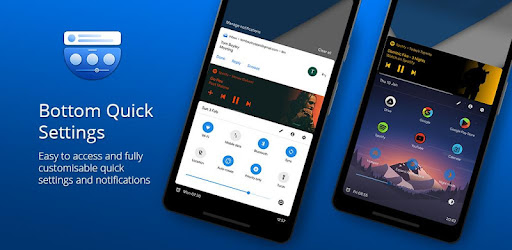
Bottom Quick Settings moves your notification shade and quick settings panel to the bottom of your Android screen — one-handed access to 40+ controls, right where your thumb reaches.
Swipe up from a customizable trigger anywhere on screen and your quick settings panel opens instantly at the bottom. Toggle WiFi, Bluetooth, brightness, volume, and dozens more with just your thumb.
NOTIFICATION SHADE
- Full notification panel relocated to the bottom of your screen
- Reply, open, dismiss, interact and manage all notifications
- Full color customization
- Dynamic colors
BOTTOM STATUS BAR
- Move your device's status bar to the bottom of the screen
- All notification and system icons — now within thumb reach
- Full color personalization
- Blacklist: auto-hide the status bar in specific apps
QUICK SETTING TILES — 40+ CONTROLS
- WiFi, Bluetooth, Mobile Data, Location, Torch, NFC and 35 more
- Add any app or website as a custom shortcut tile
- Adjust the grid: change rows and columns to fit your style
- Built-in sliders: screen brightness, media, ringtone, alarm and notification volume
SWIPE TRIGGER HANDLE
- Place it anywhere along the screen edge
- Fully adjustable size — never conflicts with navigation gestures
- Auto-hide in fullscreen and landscape
- Blacklist: hide the trigger handle in specific apps
CUSTOMIZATION
- Blur the quick settings panel background
- Custom colors for the panel background and quick setting icons
- Add a background image to the panel
- App icon pack support
- Match navigation bar color to the panel footer
- Dark mode
- Tasker integration for automation
BACKUP / RESTORE
- Save and restore your full customization setup
- Share your themes with other users
ROOT / ADB POWER FEATURES
- Toggle Mobile Data, Location and other secure system settings
- One-time ADB command unlocks Android-restricted controls — no root required
Android's quick settings shouldn't be stuck at the top of a large screen. Bottom Quick Settings puts your notification shade, status bar, and quick settings panel exactly where your thumb reaches — all in one swipe.
Bottom Quick Settings uses Accessibility Services to display the custom quick settings and notification panel on your screen.
Version 6.3.3
- Bug fixes and improvements
Allows access to the vibrator.
Allows applications to access information about Wi-Fi networks.
Allows applications to change Wi-Fi connectivity state.
Allows an app to access approximate location.
Allows applications to access information about networks.
Allows applications to change network connectivity state.
Allows applications to open network sockets.
Allows applications to read the sync settings.
Allows applications to write the sync settings.
Allows applications to connect to paired bluetooth devices.
Allows applications to discover and pair bluetooth devices.
Marker permission for applications that wish to access notification policy.
Allows an application to receive the ACTION_BOOT_COMPLETED that is broadcast after the system finishes booting.
Allows using PowerManager WakeLocks to keep processor from sleeping or screen from dimming.
Allows an application to expand or collapse the status bar.
Required to be able to access the camera device.
Allows an application to initiate a phone call without going through the Dialer user interface for the user to confirm the call.
Allows read only access to phone state, including the phone number of the device, current cellular network information, the status of any ongoing calls, and a list of any PhoneAccounts registered on the device.
Allows an application to read or write the system settings.
Allows an application to read or write the secure system settings.