Brother iPrint&Scan on Windows Pc
Developed By: Brother Industries, Ltd.
License: Free
Rating: 3,0/5 - 106.129 votes
Last Updated: August 04, 2026
App Details
| Version |
6.14.0 |
| Size |
98.7 MB |
| Release Date |
December 11, 25 |
| Category |
Tools Apps |
|
App Permissions:
Allows applications to open network sockets. [see more (11)]
|
|
What's New:
The in-app login feature for cloud services will be temporarily suspended.You can continue to use the print function via the sharing feature as before. [see more]
|
|
Description from Developer:
Brother iPrint&Scan is a free app that lets you print from and scan to your Android device. Use your local wireless network to connect your Android device to your Brother print... [read more]
|
About this app
On this page you can download Brother iPrint&Scan and install on Windows PC. Brother iPrint&Scan is free Tools app, developed by Brother Industries, Ltd.. Latest version of Brother iPrint&Scan is 6.14.0, was released on 2025-12-11 (updated on 2026-08-04). Estimated number of the downloads is more than 10,000,000. Overall rating of Brother iPrint&Scan is 3,0. Generally most of the top apps on Android Store have rating of 4+. This app had been rated by 106,129 users, 41,412 users had rated it 5*, 39,642 users had rated it 1*.
How to install Brother iPrint&Scan on Windows?
Instruction on how to install Brother iPrint&Scan on Windows 10 Windows 11 PC & Laptop
In this post, I am going to show you how to install Brother iPrint&Scan on Windows PC by using Android App Player such as BlueStacks, LDPlayer, Nox, KOPlayer, ...
Before you start, you will need to download the APK/XAPK installer file, you can find download button on top of this page. Save it to easy-to-find location.
[Note] You can also download older versions of this app on bottom of this page.
Below you will find a detailed step-by-step guide, but I want to give you a fast overview of how it works. All you need is an emulator that will emulate an Android device on your Windows PC and then you can install applications and use it - you see you're playing it on Android, but this runs not on a smartphone or tablet, it runs on a PC.
If this doesn't work on your PC, or you cannot install, comment here and we will help you!
Step By Step Guide To Install Brother iPrint&Scan using BlueStacks
- Download and Install BlueStacks at: https://www.bluestacks.com. The installation procedure is quite simple. After successful installation, open the Bluestacks emulator. It may take some time to load the Bluestacks app initially. Once it is opened, you should be able to see the Home screen of Bluestacks.
- Open the APK/XAPK file: Double-click the APK/XAPK file to launch BlueStacks and install the application. If your APK/XAPK file doesn't automatically open BlueStacks, right-click on it and select Open with... Browse to the BlueStacks. You can also drag-and-drop the APK/XAPK file onto the BlueStacks home screen
- Once installed, click "Brother iPrint&Scan" icon on the home screen to start using, it'll work like a charm :D
[Note 1] For better performance and compatibility, choose BlueStacks 5 Nougat 64-bit read more
[Note 2] about Bluetooth: At the moment, support for Bluetooth is not available on BlueStacks. Hence, apps that require control of Bluetooth may not work on BlueStacks.
How to install Brother iPrint&Scan on Windows PC using NoxPlayer
- Download & Install NoxPlayer at: https://www.bignox.com. The installation is easy to carry out.
- Drag the APK/XAPK file to the NoxPlayer interface and drop it to install
- The installation process will take place quickly. After successful installation, you can find "Brother iPrint&Scan" on the home screen of NoxPlayer, just click to open it.
Discussion
(*) is required
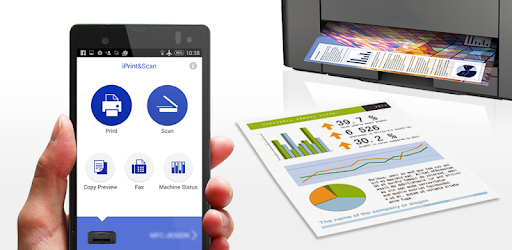
Brother iPrint&Scan is a free app that lets you print from and scan to your Android device. Use your local wireless network to connect your Android device to your Brother printer or all-in-one. Some new advanced functions have been added (edit, fax send, fax preview, copy preview, machine status). For a list of supported models, please visit your local Brother website.
[Key Features]
- Easy to use menu.
- Simple steps to print your favorite photos, web pages, and documents (PDF, Word, Excel®, PowerPoint®, Text).
- Print your documents and photos directly from the following cloud services: DropboxTM, OneDrive, Evernote®.
- Scan directly to your Android device.
- Save scanned images to your Android device or email them (PDF, JPEG).
- Automatically search for supported devices on a local wireless network.
- No computer and no driver required.
- The NFC function is supported, enabling you to print or scan by holding your mobile device over an NFC mark on your machine and tapping the screen.
*Memory card needed for printing and scanning.
*To use the NFC function, both your mobile device and your machine need to support NFC. There are some mobile devices with NFC that cannot work with this function. Please visit our support website (https://support.brother.com/) for a list of supported mobile devices.
"[Advanced Functions]
(Only available on new models.)"
- Edit previewed images using the editing tools (scale, straighten, crop) if necessary.
- Send a fax directly from your mobile device.(This app feature requires access to the contacts list on your mobile device.)
- View received faxes stored on your machine on your mobile device.
- The copy preview function enables you to preview an image and edit it if necessary before copying to avoid copy errors.
- View the machine’s status such as ink/toner volume and error messages on your mobile device.
*Compatible functions will depend on the selected device.
[Compatible Print Settings]
- Paper Size -
4" x 6" (10 x 15cm)
Photo L (3.5" x 5" / 9 x 13 cm)
Photo 2L (5" x 7" / 13 x 18 cm)
A4
Letter
Legal
A3
Ledger
- Media Type -
Glossy Paper
Plain Paper
- Copies -
Up to 100
[Compatible Scan Settings]
- Document Size -
A4
Letter
4" x 6" (10 x 15cm)
Photo L (3.5" x 5" / 9 x 13 cm)
Card (2.4" x 3.5" / 60 x 90 mm)
Legal
A3
Ledger
- Scan Type -
Color
Color (Fast)
Black & White
[Access Permission Information]
You must check and allow the essential access permissions below to use Brother iPrint&Scan service.
Essential Permission
• Contact information: access to your contact numbers is needed when you use functions like fax, but you can limit access to the specific contact necessary for the service.
Optional Permission
• Location information: It is requested only when you use device search features like Wi-Fi Direct, Bluetooth, or NFC.
Optional data is required to use the corresponding function, and even if permission is not granted, services other than the corresponding function can be used.
*Compatible settings will depend on the selected device and function.
*Evernote is a trademark of Evernote Corporation and used under a license.
*Microsoft, Excel, and PowerPoint are either registered trademarks or trademarks of Microsoft Corporation in the United States and/or other countries.
*To help us improve the application, send your feedback to Feedback-mobile-apps-ps@brother.com. Please note that we may not be able to respond to individual emails.
The in-app login feature for cloud services will be temporarily suspended.
You can continue to use the print function via the sharing feature as before.
Allows applications to open network sockets.
Allows applications to access information about Wi-Fi networks.
Allows applications to change Wi-Fi connectivity state.
Allows applications to access information about networks.
Allows applications to change network connectivity state.
Allows access to the list of accounts in the Accounts Service.
Allows an application to read the user's contacts data.
Allows an app to access approximate location.
Allows an app to access precise location.
Allows applications to perform I/O operations over NFC.
Allows applications to connect to paired bluetooth devices.


