Sygic Car Connected Navigation on Windows Pc
Developed By: Sygic.
License: Free
Rating: 4,6/5 - 231.890 votes
Last Updated: August 05, 2026
App Details
| Version |
18.6.2 |
| Size |
86.6 MB |
| Release Date |
January 22, 24 |
| Category |
Maps & Navigation Apps |
|
App Permissions:
Allows an app to access precise location. [see more (16)]
|
|
What's New:
Better with every update!- Bug fixes and optimizationDrive safe! [see more]
|
|
Description from Developer:
Sygic Car Navigation is navigation app especially optimised to work with your car’s built-in infotainment system via smartphone to in-dash connectivity. Just connect Sygic Car Navi... [read more]
|
About this app
On this page you can download Sygic Car Connected Navigation and install on Windows PC. Sygic Car Connected Navigation is free Maps & Navigation app, developed by Sygic.. Latest version of Sygic Car Connected Navigation is 18.6.2, was released on 2024-01-22 (updated on 2026-08-05). Estimated number of the downloads is more than 5,000,000. Overall rating of Sygic Car Connected Navigation is 4,6. Generally most of the top apps on Android Store have rating of 4+. This app had been rated by 231,890 users, 190,262 users had rated it 5*, 10,886 users had rated it 1*.
How to install Sygic Car Connected Navigation on Windows?
Instruction on how to install Sygic Car Connected Navigation on Windows 10 Windows 11 PC & Laptop
In this post, I am going to show you how to install Sygic Car Connected Navigation on Windows PC by using Android App Player such as BlueStacks, LDPlayer, Nox, KOPlayer, ...
Before you start, you will need to download the APK/XAPK installer file, you can find download button on top of this page. Save it to easy-to-find location.
[Note] You can also download older versions of this app on bottom of this page.
Below you will find a detailed step-by-step guide, but I want to give you a fast overview of how it works. All you need is an emulator that will emulate an Android device on your Windows PC and then you can install applications and use it - you see you're playing it on Android, but this runs not on a smartphone or tablet, it runs on a PC.
If this doesn't work on your PC, or you cannot install, comment here and we will help you!
Step By Step Guide To Install Sygic Car Connected Navigation using BlueStacks
- Download and Install BlueStacks at: https://www.bluestacks.com. The installation procedure is quite simple. After successful installation, open the Bluestacks emulator. It may take some time to load the Bluestacks app initially. Once it is opened, you should be able to see the Home screen of Bluestacks.
- Open the APK/XAPK file: Double-click the APK/XAPK file to launch BlueStacks and install the application. If your APK/XAPK file doesn't automatically open BlueStacks, right-click on it and select Open with... Browse to the BlueStacks. You can also drag-and-drop the APK/XAPK file onto the BlueStacks home screen
- Once installed, click "Sygic Car Connected Navigation" icon on the home screen to start using, it'll work like a charm :D
[Note 1] For better performance and compatibility, choose BlueStacks 5 Nougat 64-bit read more
[Note 2] about Bluetooth: At the moment, support for Bluetooth is not available on BlueStacks. Hence, apps that require control of Bluetooth may not work on BlueStacks.
How to install Sygic Car Connected Navigation on Windows PC using NoxPlayer
- Download & Install NoxPlayer at: https://www.bignox.com. The installation is easy to carry out.
- Drag the APK/XAPK file to the NoxPlayer interface and drop it to install
- The installation process will take place quickly. After successful installation, you can find "Sygic Car Connected Navigation" on the home screen of NoxPlayer, just click to open it.
Discussion
(*) is required
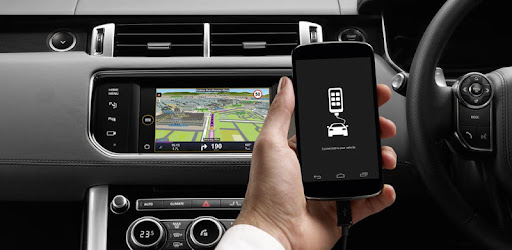
Sygic Car Navigation is navigation app especially optimised to work with your car’s built-in infotainment system via smartphone to in-dash connectivity. Just connect Sygic Car Navigation via USB cable to your car infotainment system. You can control it through the steering wheel buttons, voice commands or touchscreen. Sygic Car Navigation is much more advanced than your built-in navigation system thanks to its fantastic features like Car Connectivity, Real-time Traffic Information, Speed Limits, Fuel Prices and more.
Compatible car manufacturers:
- FORD
- Jaguar
- Land Rover
- Honda
- VolksWagen
- Seat
- Peugeot
- Citroen
- Skoda
- Suzuki
Sygic Car Navigation on SYNC®3 AppLink is now available for Ford drivers with updated SYNC®3 head units**. Connecting Sygic Car Navigation with new SYNC®3 AppLink will extend trial version to 14 days. Connectivity works only with Sync®3 with firmware 3.0 and above. Check your firmware version in SYNC®3 unit (Settings -> General -> About Sync).
With Sygic Car Navigation, you can enjoy advanced navigation features on your car’s infotainment system screen.
Car Connectivity
You can enjoy all advanced navigation features on your car’s infotainment system. Simply connect your phone to your car with a USB cable and you're ready to go. Sygic supports all major car connectivity technologies such as MirrorLink, SYNC®3 (SDL) or mySPIN.
Offline Maps with Lifetime free map updates
Enjoy high quality offline maps everywhere, anytime. Up to date maps are stored directly on your smartphone so internet connection isn’t required. Great for use when abroad. Lifetime map updates are included for free forever. Get them multiple times per year and always enjoy most accurate map data
Speed Limits
Knowing speed limits is extremely important. Sygic Car Navigation includes Speedometer and Speed limits, so you will always see your current speed and the maximum allowed speed on the road you are driving on.
Real-time Traffic Information
Find the quickest route to your destination based on current road conditions. With this feature, you will see real-time traffic conditions, and you can set up the quickest road.
Voice Guided Navigation
Voice guided navigation with Spoken Street Names, based on text-to-speech synthesis, will provide you with precise instructions that tell you the names of streets and cities, as well as the directions and distance to each manoeuvre.
Parking Services
Park easily with live information where you can see the prices and the availability of parking spaces in real time, so you can make the best decision where to leave your car.
Fuel Prices
Compare fuel prices and find the nearest and cheapest gas stations. You can find the best offers within seconds and Sygic will show you the fastest route to the petrol station of your choice.
The magic behind the curtain is the technology running on MirrorLink, SYNC®3 (SDL) or mySPIN.
We are still waiting for Google to open it's Android Auto for third-party navigation developers. We'd love to launch Android Auto support as quickly as possible after Google opens it for us. Android Auto only supports Google Maps and Waze which both need an internet connection to work properly so it might be inconvenient when are driving through rural areas with a poor internet connection.
And other great features, check them out here:
www.sygic.com/car-navigation/benefits
Need help?
Please visit sygic.com/support we are here for you 7 days a week.
**AppLink Mobile Navigation feature is a new feature and requires a SYNC®3 software update. For detailed information about your SYNC®3 head unit contact your Ford dealer or your local Ford website.
Better with every update!
- Bug fixes and optimization
Drive safe!
Allows an app to access precise location.
Allows an app to access approximate location.
Allows an application to read the user's contacts data.
Allows an application to write to external storage.
Allows an application to access extra location provider commands.
Allows applications to access information about networks.
Allows applications to connect to paired bluetooth devices.
Allows applications to open network sockets.
Allows access to the vibrator.
Allows applications to access information about Wi-Fi networks.
Allows applications to change Wi-Fi connectivity state.
Allows an application to modify global audio settings.
Allows using PowerManager WakeLocks to keep processor from sleeping or screen from dimming.
Allows access to the list of accounts in the Accounts Service.
Allows read only access to phone state, including the phone number of the device, current cellular network information, the status of any ongoing calls, and a list of any PhoneAccounts registered on the device.
Allows an application to read from external storage.


